

Request form
The request form is how you submit a stand request for an event. You don’t need an account: the agency emails you a personal link (“Go to stand request”). Don’t share the link – anyone who has it can edit your stand request.
At the top of the form you see the agency, the event with its dates, your category and the request deadline.
Starting from a category link
Section titled “Starting from a category link”Some agencies share one link for a whole category, for example on their website. It shows the category with its conditions and only asks for your email address and the email language. Tap “Start stand request”: Aetherial creates your personal stand request, emails you its link and takes you straight there. Save this link – it is the only way to continue later. Through a category link the form always starts empty, even if you took part last year. After the category’s request deadline the link only shows a notice; if the agency deactivated or replaced it, it shows an error.
Through an agency’s event link you first pick your category from a list grouped by area, each with a short description. Then it continues like a category link; “Pick another category” takes you back to the list. If no category is open right now, the link only shows a notice.
Which steps and fields you see, and which are required, the agency sets per category. The table shows the usual form; if a step is missing from the step bar, your category doesn’t need it. You may skip a step marked “(optional)”.
| Step | What you enter | Required |
|---|---|---|
| Contact | Company or name, contact person, email, phone, email for invoices; street, postcode, city and on-site contact person (name, mobile) | Company or name, contact person, email, phone, street, postcode, city |
| Offer | Type of offer (Food, Drinks, Goods, Entertainment), a headline (e.g. Thai food), the offer in detail (e.g. the single dishes) | type, headline and offer in detail |
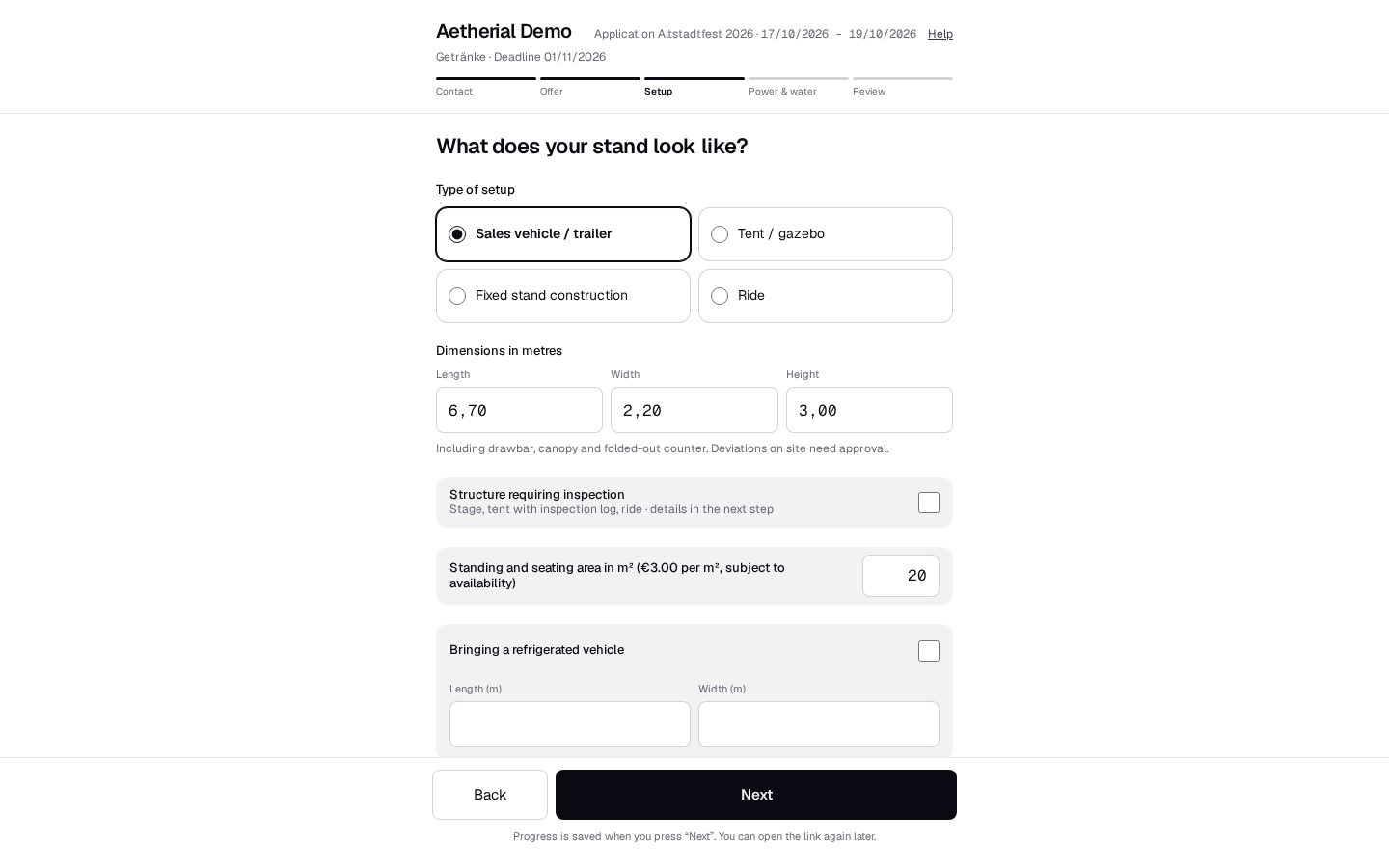
| Setup | Type of setup, dimensions, structure requiring inspection, standing and seating area, refrigerated vehicle, photos | Type of setup, length, width, height opened (gross), length and width folded (net), stand weight; for a sales vehicle / trailer the towing vehicle’s permitted total weight; with a refrigerated vehicle its count, length, width, height and permitted total weight |
| Flying structure (Fliegender Bau) | only for a structure requiring inspection, see below | yes, if the step appears |
| Power & water | Device power, power connections, refrigerated vehicle connections, water – see Power | confirm the step; with a refrigerated vehicle a refrigerated vehicle connection or “Refrigerated vehicle needs no power” |
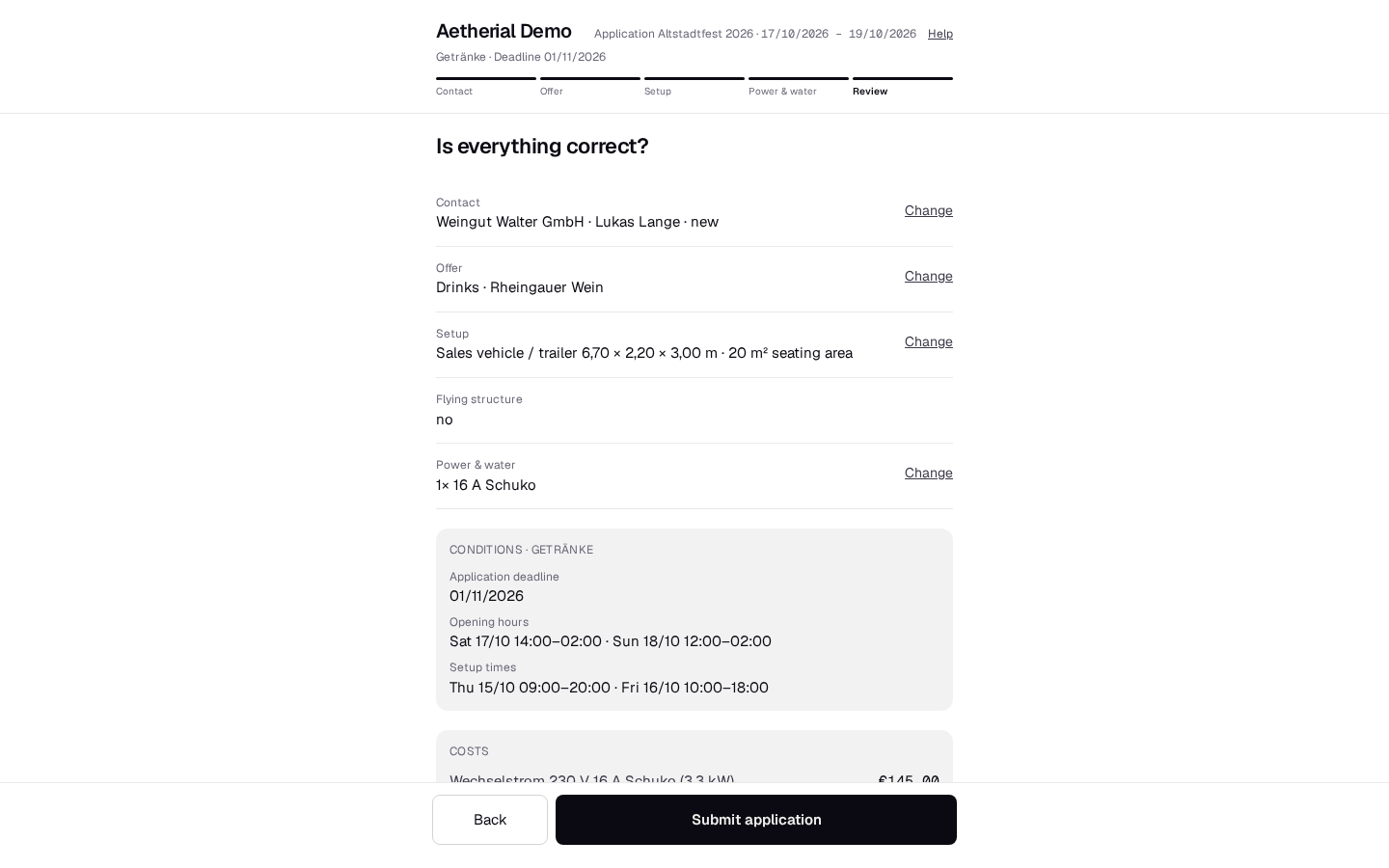
| Review | Summary, conditions, costs, terms of participation | terms of participation |
How to fill in the form:
- Open the link from the email.
- Fill in the step and tap “Next”. Only then is the step checked and saved.
- “Back” takes you one step back without saving. Use the step bar at the top to jump to any step you have already reached.
- In the “Review” step you see all your details. “Change” takes you back to a step.
- Tick the terms of participation and tap “Submit stand request”.
Enter dimensions in metres with up to two decimals, for example “6.70”. You enter two sizes:
- Gross (opened): your stand fully set up, including drawbar, canopy and folded-out counter. This is the space you need on site; deviations on site need approval.
- Net (folded): the base size of your stand as it is delivered. Net may not be larger than gross.
You always enter the total weight of the stand in kg. For a sales vehicle / trailer you also enter the permitted total weight of the towing vehicle in kg (registration certificate, field F.2); for other types it is optional. Vehicles over 3.5 t may not drive everywhere, and the agency plans your spot accordingly. The “i” next to the fields explains each one.
The standing and seating area is capped per event (default 18 m²); the limit is shown at the field. The form checks phone numbers: without a country code a German number is assumed, for example “0611 123456”.
If you bring a refrigerated vehicle, enter its count, length, width, height and permitted total weight (kg). You book its power in the “Power & water” step as refrigerated vehicle power; if it needs none, tick “Refrigerated vehicle needs no power” there. Without one of the two you can neither save the step nor submit the stand request, even in categories where the step is otherwise optional. There are fewer refrigerated truck spots than stands: the agency confirms your truck separately.
Depending on the category, the form also asks:
- Subtenant (Contact step): only if someone else runs the stand for you. Name, contact person, address, phone; no other details without a name.
- Gas at the stand, Music at the stand (GEMA fee), Product placement (Offer step): ticks. The GEMA fee and product placement then appear in the costs.
- Times (Setup step): setup from/to, teardown from/to, soundcheck possible from, each with date and time. For setup and teardown you enter both times, and the end is after the start.
- Storage area (Setup step): whole m² and a note. The agency confirms the area.
- Vehicle, area, fire safety, other (Setup step): each a quantity (optional) and a description of what you need. The form doesn’t accept a quantity without a description.
Bank account
Section titled “Bank account”Some categories ask for your bank account (account holder, IBAN, BIC) in the Contact step. The agency only needs it to refund your deposit after the event. Whether it is optional or required is up to the agency.
- As soon as you fill in a field, you need the account holder and a valid IBAN; the BIC is optional. The form reports an invalid IBAN right away.
- After saving we only show it shortened, for example “DE•• •••• 1234”. If you leave the fields empty later, the saved one stays.
- After submitting you can no longer change it here. After the confirmation you can do so via your stand link.
Saving progress and continuing later
Section titled “Saving progress and continuing later”Your progress is saved every time you press “Next”. You can open the link again at any time – even on another device – and you land on the first step that is still missing. Photos and inspection log copies are saved as soon as they are uploaded.
Flying structure (Fliegender Bau)
Section titled “Flying structure (Fliegender Bau)”The “Flying structure” step only appears if you tick “Structure requiring inspection” in the Setup step (stage, tent with inspection log, ride). In some categories the box is ticked and locked (“Always subject to inspection for your category.”). If the gross height is over 5 m, the form also ticks and locks the box and gives the reason (“Requires inspection: Height over 5 m”); at 5 m or less it is free again.
Structures with an inspection log (Prüfbuch) must be reported to the building authority; the agency fills in that form for you. You enter:
- Type: Stage / grandstand, Tent or Ride,
- Inspection log number and valid until,
- Area m² and Height m, optionally dimensions,
- Competent person at the inspection (name, optionally mobile),
- a test book copy (with design approval and last inspection).
You cannot submit without a test book copy. If you later untick “Structure requiring inspection”, the step and the uploaded test book copies are removed.
Uploading files
Section titled “Uploading files”| File | Step | Allowed | Number |
|---|---|---|---|
| Setup photos | Setup | JPEG, PNG, WebP | up to 10 |
| Test book copy | Flying structure | PDF, JPEG, PNG | up to 5 |
Each file may be at most 4 MB. Photos are scaled down in the browser before uploading.
Setup photos appear as tiles with a preview. Tap “+” to choose photos; they upload right away. The “×” on a tile deletes the photo. The test book copy is listed as a row with its file name.
After submitting
Section titled “After submitting”You see “Thank you, your stand request has been received.” followed by your details, now read-only. The agency reviews your stand request and gets back to you.
Request a change
Section titled “Request a change”If something in your submitted stand request should change, describe it under “Request a change” (at most 2000 characters) and tap “Request a change”. The stand request itself stays as it is; the agency sees your wish and adjusts the details if needed. Below, all your change requests are listed with their date, each “open” or “done” once the agency has handled it. You can send several requests.
The form is available while the link is valid and the stand request has been received, is in review, on the waitlist or taken over. For a rejected stand request, please request changes directly from the agency.
Requesting another stand
Section titled “Requesting another stand”If you have more than one stand, tap “Request another stand” after submitting. This creates a new stand request for the same event, with the same e-mail address, language, deadline and category. Your contact details are already filled in, all other steps are empty. You go straight to the new form and also get its link by e-mail. Each stand is its own stand request that the agency reviews separately.
The button only appears while the link is valid. One link and the stands requested from it allow at most 10 additional stands; after that, please contact the agency directly.
Once the agency has transferred your stand request to the stand list, the link shows the costs that were fixed at the transfer. After the request deadline the link only shows the notice “The request deadline has passed” and no details, even for a submitted or transferred stand request. You then see your costs on your stand. If the form doesn’t ask for your bank account, the agency asks for it via the stand link after confirmation.
If the link doesn’t work
Section titled “If the link doesn’t work”| Message | Meaning |
|---|---|
| The request deadline has passed | The deadline is over. You no longer see your details; saving, submitting and uploading are locked. Contact the agency. |
| Form not available | The form is not set up for your category. Contact the agency. |
| Link invalid or expired. | The link is wrong or no longer valid. Ask the agency for a new link. |
| Link expired. … | The event is archived. Contact the agency if you need a new link. |
If a deadline is set, the link is valid at most until the end of that day (German time). The deadline can differ per category.