

Power plan
The power plan shows all booked power connections of an event on the site plan. Here you add distributors, assign the connections, see the load and export the plan and parts list for the power contractor.
Where the connections come from
Section titled “Where the connections come from”The connections come from the objects’ power requirements in the operation time window: from the Excel import, from confirming a stand request (see Power) or from the object detail. They can only be added and changed there, not in the power plan.
Who may do what
Section titled “Who may do what”| Role | Sees | May |
|---|---|---|
| Agency | all connections | distributors, assignment, simultaneity factor, export, own power plan |
| Power contractor | all connections | same as agency, plus “Power cut” |
| Sector lead, technical lead, customer | customer all connections; sector lead and technical lead those in their sectors and those without a sector | read and export only |
| Other contractors | only connections of their own objects | read and export only |
In an archived event the power plan is read-only; exporting still works.
Page header and plan
Section titled “Page header and plan”The header “Booked power connections” shows the count per connection type (Schuko 16 A, 16 A CEE, 32 A CEE, 63 A CEE), plus “no distributor” with the number of connections not yet assigned.
On the site plan every stand is a dot; the bigger the connection, the bigger the dot. Stands with a connection without a distributor are shown set apart. Distributors carry their load in percent, and lines connect them to their stands. Overloaded distributors and their lines are red. Below the plan you see which site plan version applies and how many stands have no position yet. Without a site plan, distributors and assignment still work.
Own power plan
Section titled “Own power plan”Without an own plan the power plan shows the site plan. If the contractor has a drawing of its own (e.g. a power overview), import it in the “Plan” section on the right: “Import own plan”, file (PDF or DXF) and scale as for the site plan, plus the offset to the site plan. The agency and the power contractor may do this.
- Offset to site plan: only needed if the own plan shows a different section than the site plan. Then tick “Section differs from the site plan” and enter where the top-left corner of the own plan lies on the site plan, in metres (negative = left of or above it). Stands and distributors keep their positions on the site plan and appear shifted by the offset; nothing has to be placed again. The plan must have the same orientation as the site plan (not rotated). Without the tick the offset is 0 – right for trade plans extracted from the site plan with the same section.
- The site plan’s grid is drawn shifted along; grid cells stay those of the site plan.
- “New plan version” takes over the offset of the previous version; “Save offset” changes it.
- “Use site plan” deletes all versions of the own plan after a confirmation; the power plan shows the site plan again.
- The PDF export uses the own plan; stands outside of it are missing on the plan page but listed.
Site plan, security, TV view and the site plan excerpt of a broadcast always show the site plan. Import, offset and deletion are recorded in the log.
Distributors
Section titled “Distributors”- Choose “New distributor”.
- Enter Name (e.g. V1) and Fuse rating (A), optionally Location and an own simultaneity factor (empty = event default).
- “Save”.
Via “Edit” you change or delete a distributor; its connections then go back to “no distributor”. “Place on plan” puts a distributor that is not yet placed in the middle of the visible plan; then you move it by drag and drop.
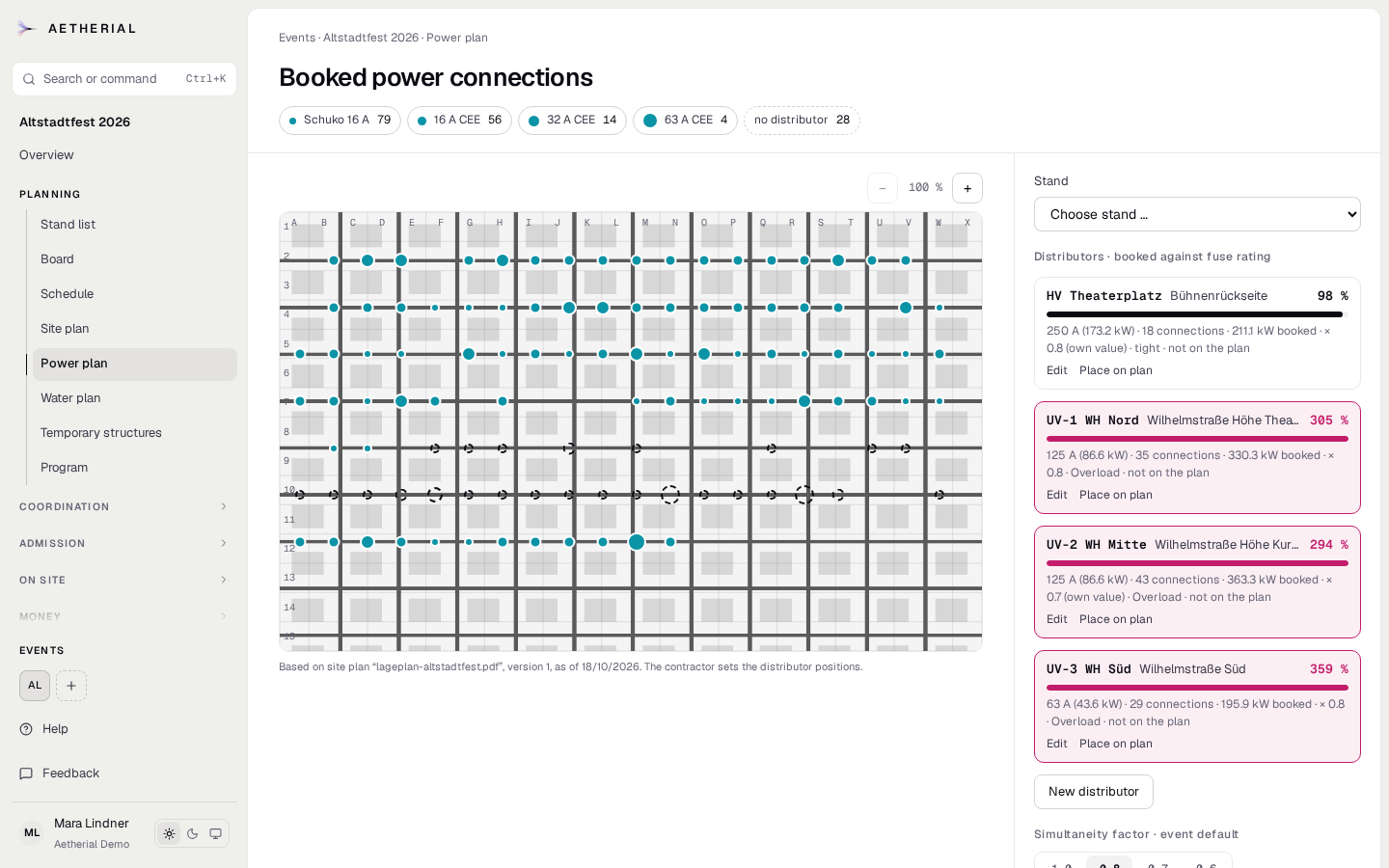
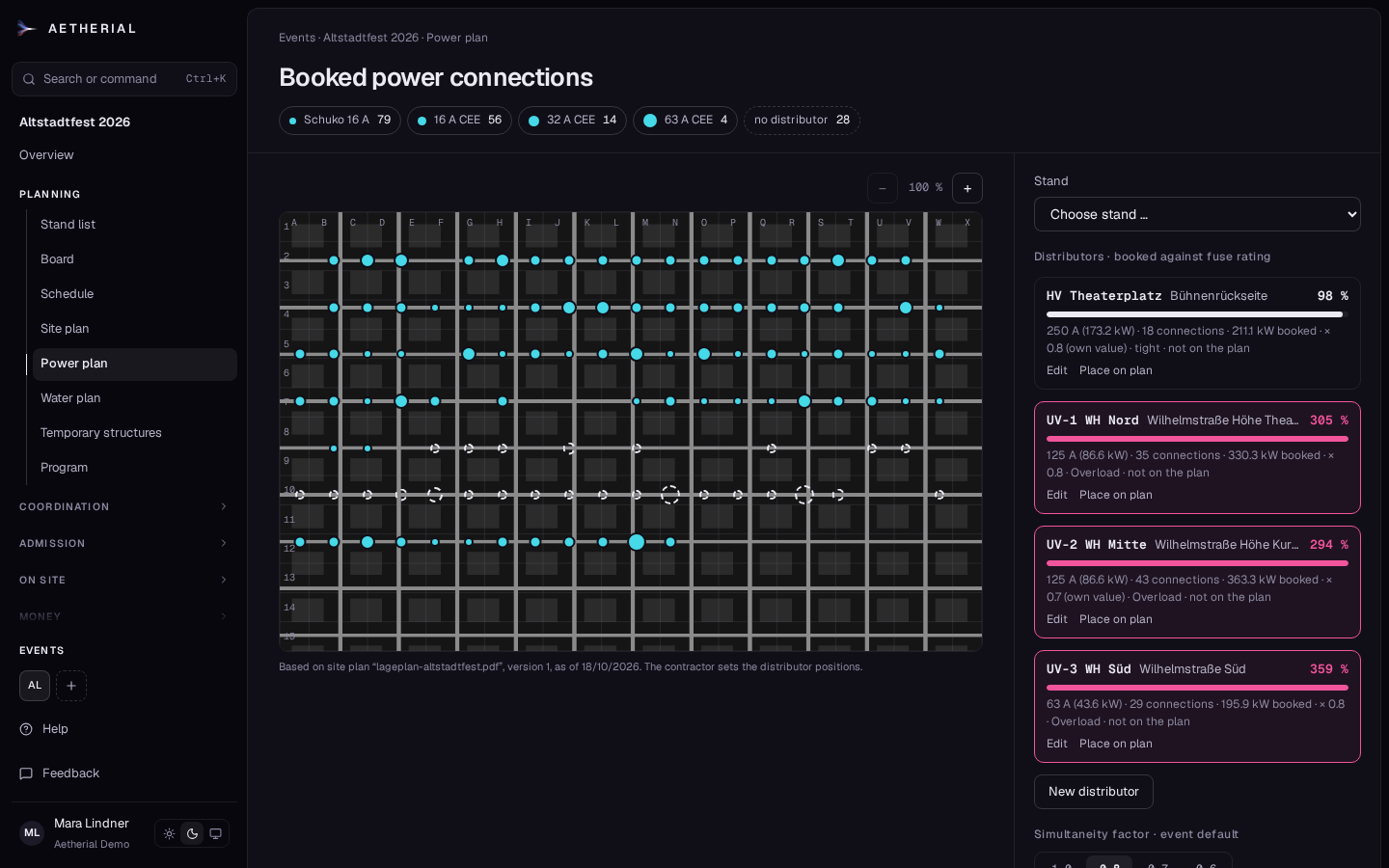
Each distributor card shows e.g. “125 A (86.6 kW) · 12 connections · 86.1 kW booked · × 0.8” and a bar. This is how Aetherial calculates:
- Distributor capacity = √3 × 400 V × fuse rating.
- Load = total kW of the assigned connections × simultaneity factor ÷ capacity.
- From 95 % it says “tight”, above 100 % “Overload” (red).
The load counts all connections of the distributor, including stands you cannot see, but none of cancelled stands.
Under “Simultaneity factor · event default” you choose 1.0, 0.8, 0.7 or 0.6. A distributor’s own value takes precedence and is marked “(own value)”.
Assigning connections
Section titled “Assigning connections”- Click a stand on the plan or pick it under “Stand” (stands without a position are listed there too).
- For each connection choose the distributor under “Distributor for …”. The choice is saved immediately.
Suggestion to move
Section titled “Suggestion to move”If a distributor is overloaded, everyone who may edit the power plan sees a “Suggestion”, e.g. “Move stand 14 (32 A CEE) from V2 to V3. Then V2 98 %, V3 71 %.” “Apply” moves the connection. Only moves that bring the overloaded distributor to at most 100 % and keep the target below 95 % are suggested; the nearest distributor is preferred.
Export and changes
Section titled “Export and changes”“Plan as PDF” creates the site plan with stands, distributors and load plus a list of connections per distributor. “Parts list CSV” has one row per connection with distributor, stand, sector, connection, kW and cooling. Both contain only the connections you may see.
Every export is recorded. The list “Since your last export (date)” then shows per stand what is new, removed, rebooked (other type) or moved (other distributor). Each contractor has its own last export; agency, sector lead, technical lead and customer share one.
Cancelled stands are left out of the page, the PDF, the parts list and the export baseline; since the last export their connections appear as “removed” in the change list. When the stand is reactivated everything is back, including the distributor assignment.
Power cut
Section titled “Power cut”Only the power contractor sees “Power cut” for the selected stand (AVB § 9.1). For violations it may cut power without consultation:
- Choose “Power cut”.
- Enter the Reason (required), optionally a Photo (JPEG, PNG or WebP).
- “Log power cut”.
The latest cut is then shown with the stand (“Power cut on …: reason”, with a link to the photo) and in the log.