

Sector list
The mobile app (Handy-App) is your working view on site: every stand in your sector, its on-site status and what comes next. It replaces Trello cards and WhatsApp groups on the grounds and also works offline.
Open and install
Section titled “Open and install”You see the “Mobile app” entry in an event’s sidebar if you may edit inspections there: agency, sector lead, technical lead and contractors for their own objects. The app lives at /onsite. On a phone, “Add to Home Screen” installs it like an app.
First “Choose event”: it lists every event that is not archived and in which you may read stands, live events first. Offline you see the events stored on the device.
Sector list
Section titled “Sector list”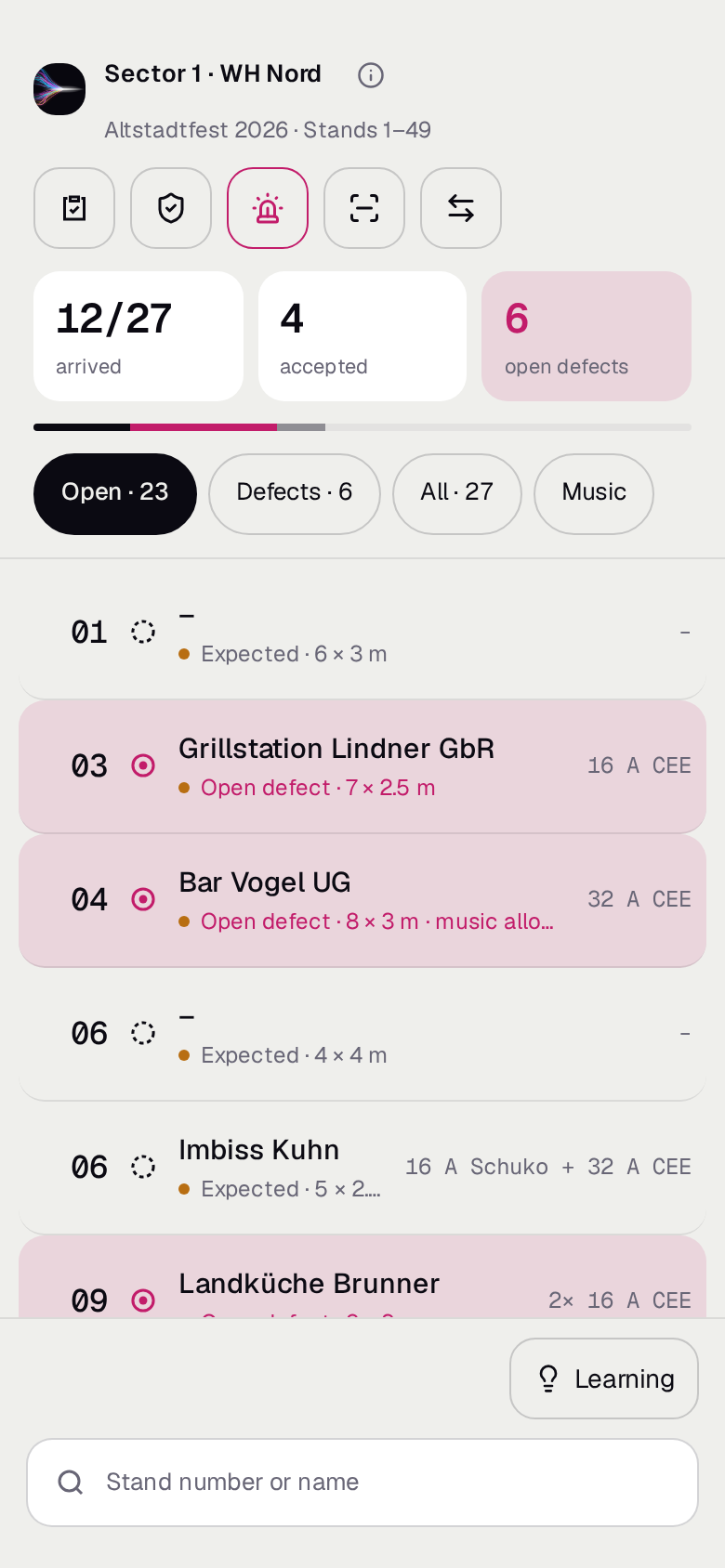
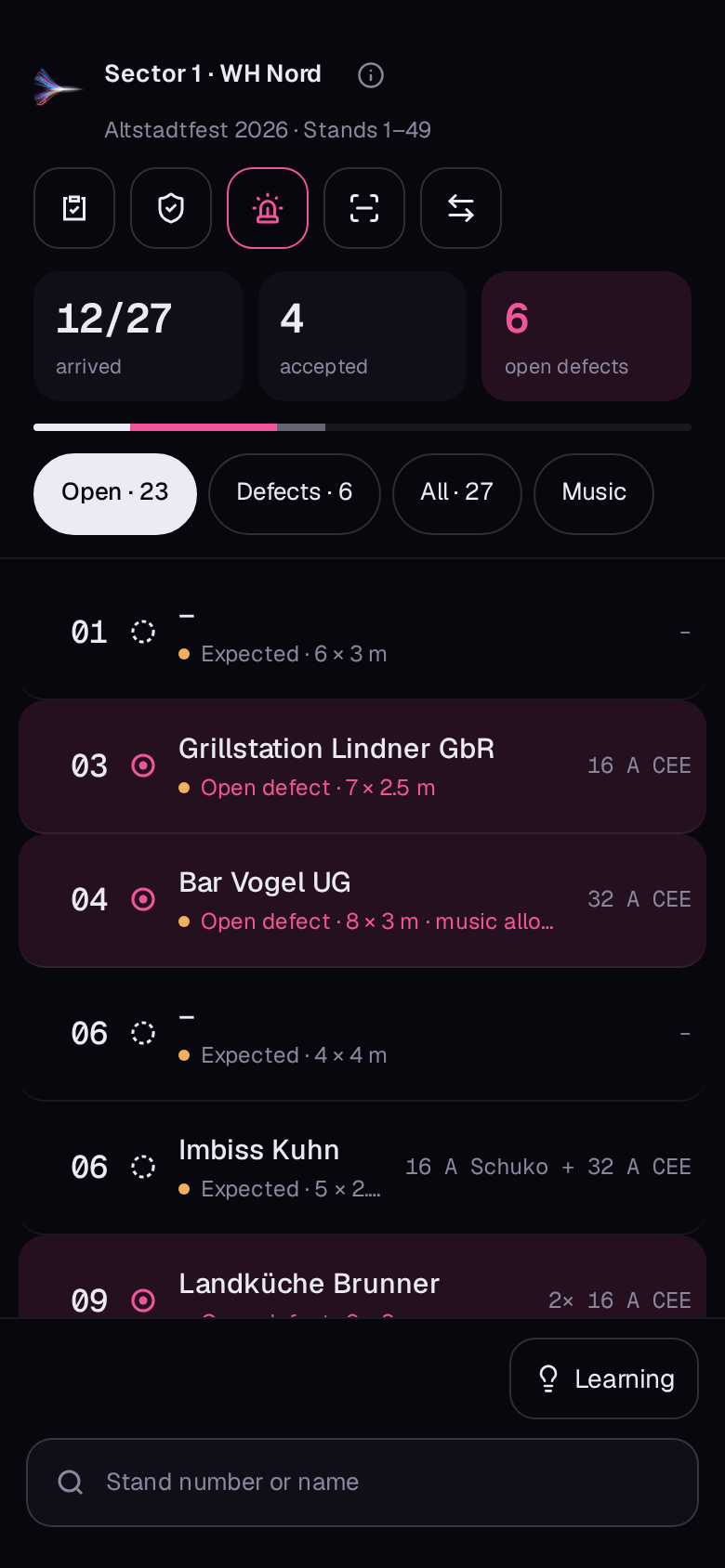
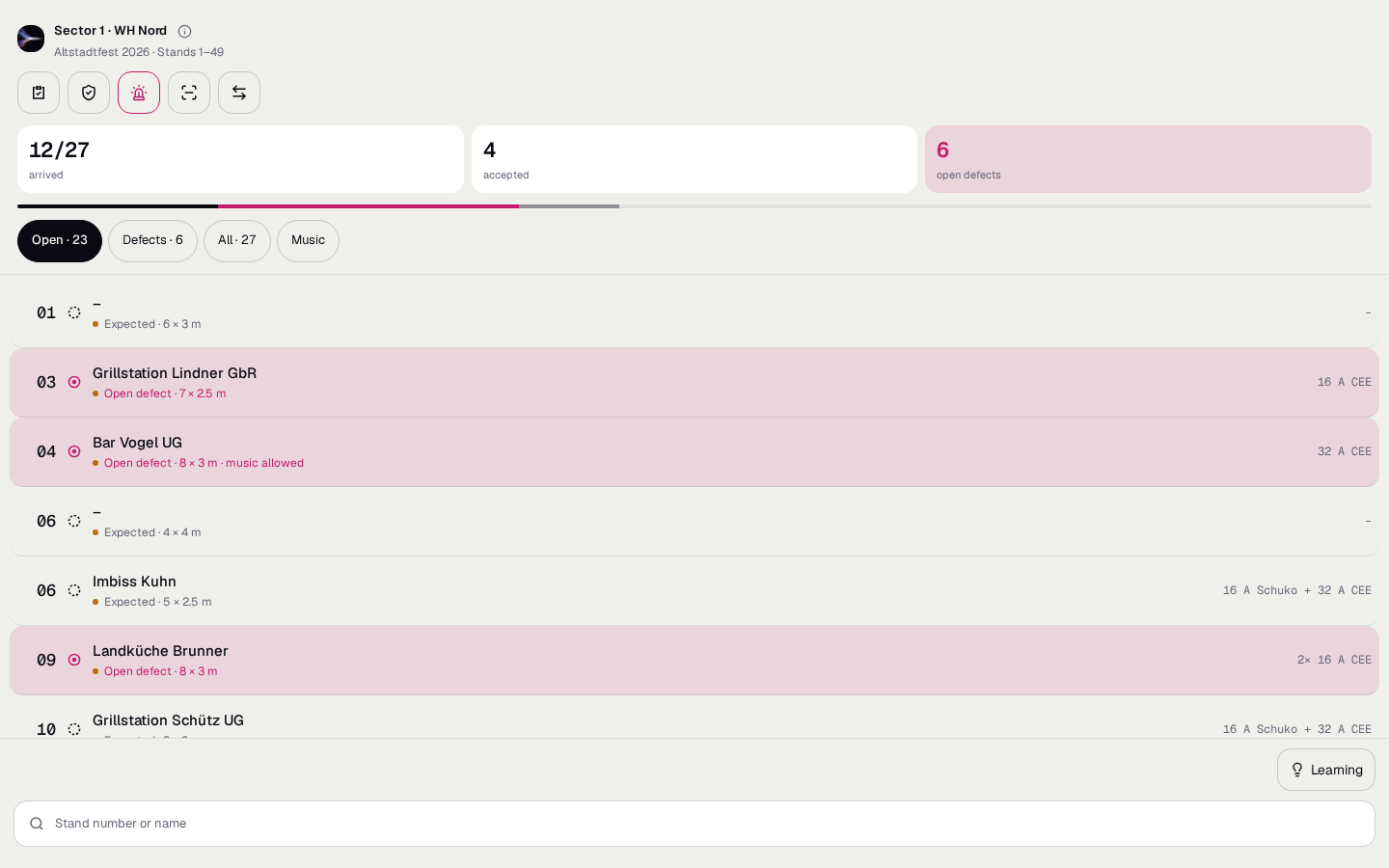
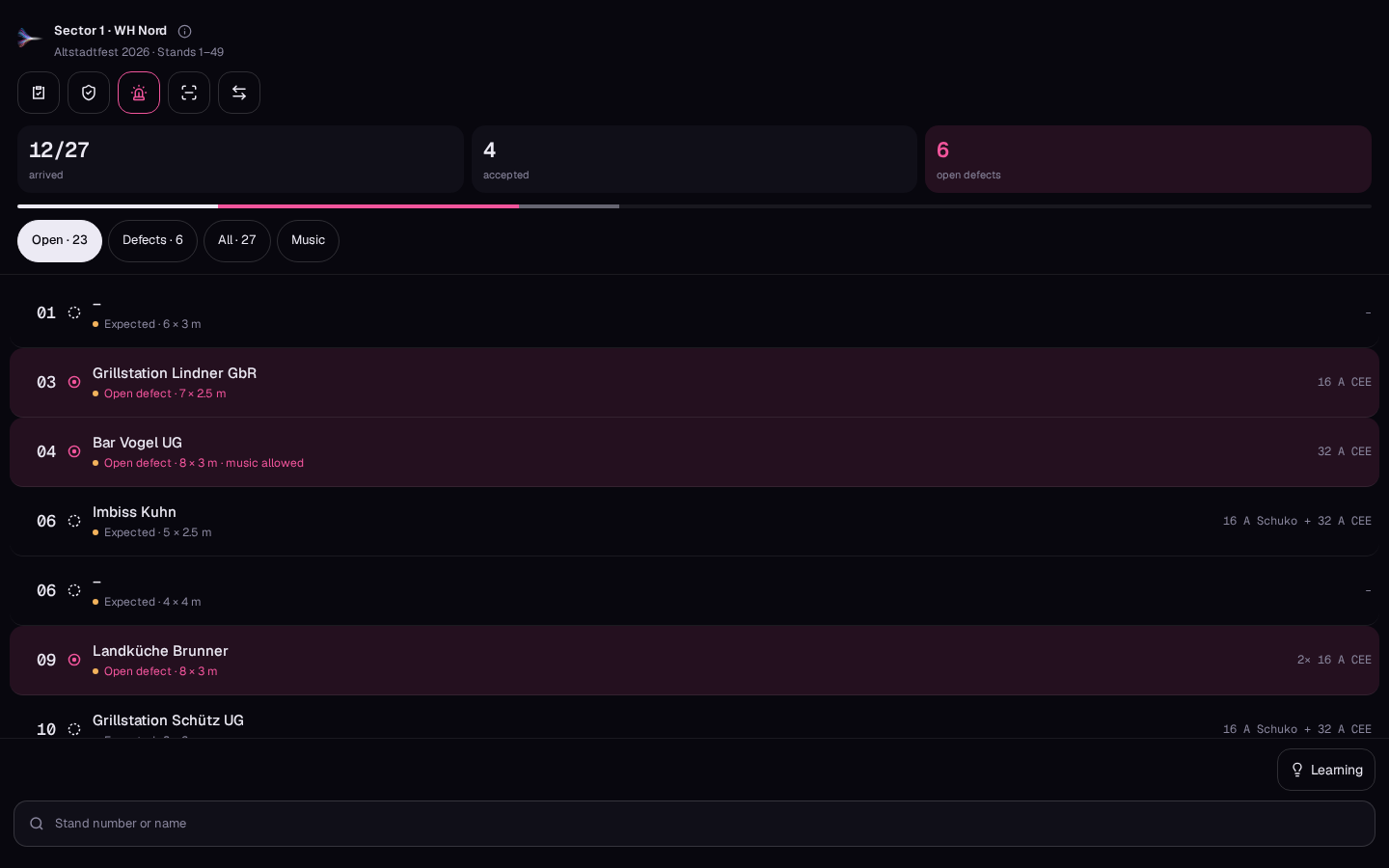
At the top: sector and stand range, on the right the tools and, if you have more than one sector, “Switch sector”. Below that three figures – arrived (x/y), accepted and open defects – and a progress bar.
- Filters: Open (not accepted yet), Defects, All and Music (stands with music allowed).
- Rows: stand number, status symbol, name, status, size, music and power. Tap to open the stand.
- Search at the bottom: stand number or name. Enter on a stand number jumps straight to that stand.
- Weather (with read access to weather and consequences): its own row below the title with warning level, kind, validity and open measures, as on the TV. It appears only while a warning is active, a weather proposal is open or the weather data is missing or out of date.
- On duty (with read access to teams & persons): collapsed above the list, per work area the names working right now (see duty plan), with the time of the last refresh.
Above the list are the messages from broadcasts, pinned and open ones first; “All messages” shows the rest. For each message tap “Read” or “Read and done”, or reply via “Reply”, offline too.
If changes have not been sent yet, the bottom shows “x changes waiting”. Next to it, “Learning” opens a point for the learnings list if you may record points.
Cancelled stands
Section titled “Cancelled stands”A cancelled stand leaves the sector list, key figures and offline data as long as nothing happened on site: status “Expected”, no inspection begun, no open defect. Any other cancelled stand stays and shows “Cancelled”, in the list and on the stand. You can keep working on it. When the stand is reactivated, it is back.
The stand page shows the on-site steps (arrived → inspection → operation → teardown OK), key data (offer, size, power, music, previous year) and the contact person with “Call contact person” if you may see exhibitor contact details.
- Arrived, Inspection OK or Not present sets the status. As a contractor you don’t see “Inspection OK”: a contractor never accepts its own work.
- Take photo stores a photo on the stand.
- Inspection report opens the stand’s inspection report.
- Report defect opens Report defects; open defects appear as a card with “Fixed”.
At the top of the stand page, icons lead to Record emergency measure and Point for the learnings list for this stand, if you may.
The status only takes these steps: expected → arrived → accepted, arrived → open defect → accepted, expected → not present, not present → arrived (arrives late), accepted → open defect (new defect during operation), accepted → teardown OK (inspection after teardown). Teardown OK is final: a defect on a dismantled stand is saved, the status stays. A defect on an expected stand sets it to “Open defect”. “Inspection OK” only works once all defects are fixed; the reason shows below it. Steps that don’t fit are greyed out.
Without the right to inspect this stand the page is “Read only”. Every change lands in the log with channel “Mobile”.
Correct status
Section titled “Correct status”The agency and the technical lead can also set a stand’s status back with “Correct status” (below the key data), e.g. when “Inspection OK” was set by mistake. Choose the new status, enter a reason, “Correct”. This needs a connection. The correction appears with its reason in the log (“correction”). Even so, “Inspection OK” only works without open defects.
Tools in the header
Section titled “Tools in the header”At the top right of the sector list are icons, depending on what you may do:
| Icon | Appears |
|---|---|
| Inspection round | if you may read inspections |
| Security check-in | if you check in staff at a post |
| Check vehicles at gate | if you control an entry gate |
| My tasks | if tasks are assigned to you or your team |
| Record emergency measure | if you may record emergency measures |
| Check walking permit | if you may read walking permits |
| Handout & return | if you may edit handout & return |
| Hand over device | always |