

Site plan
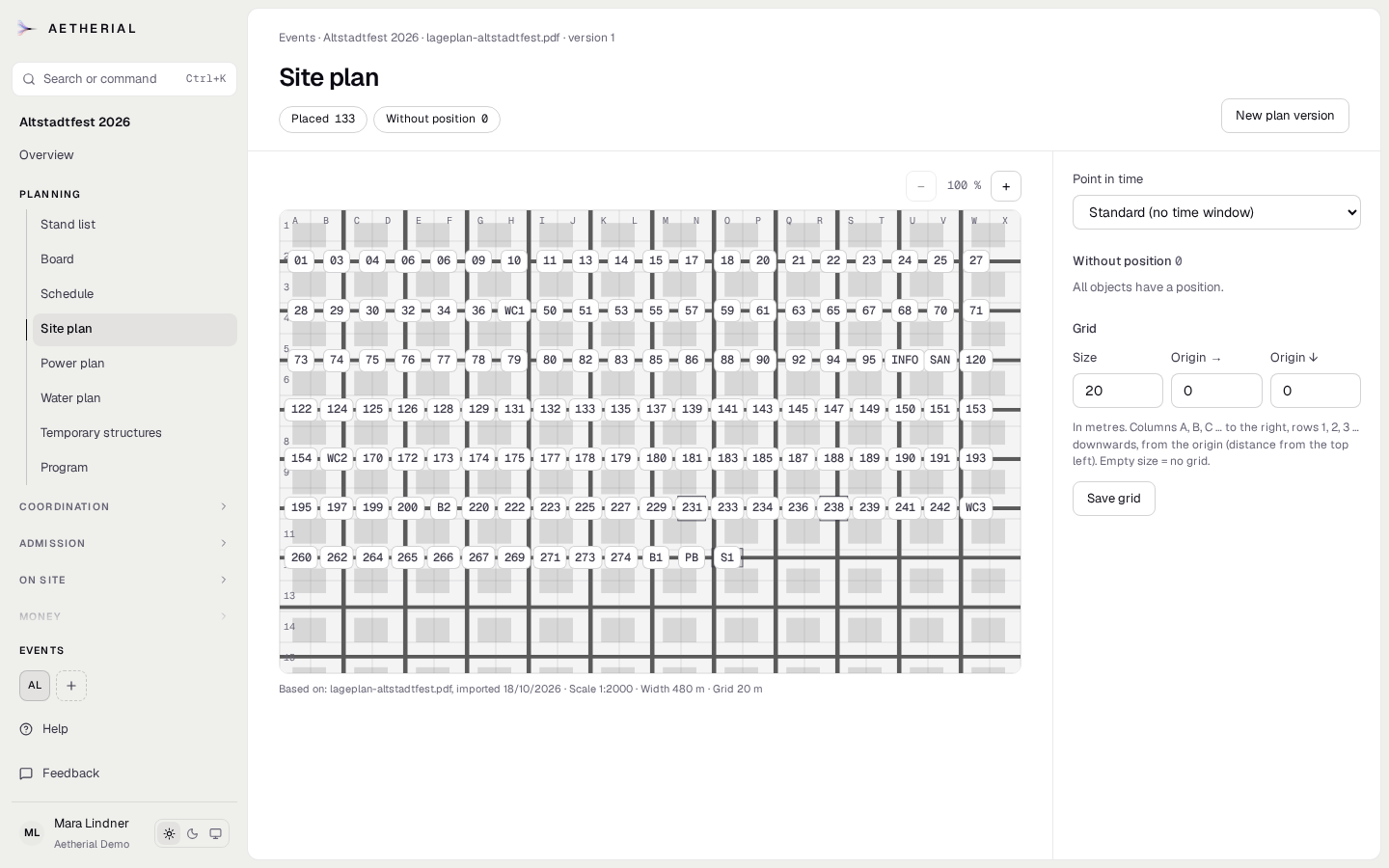
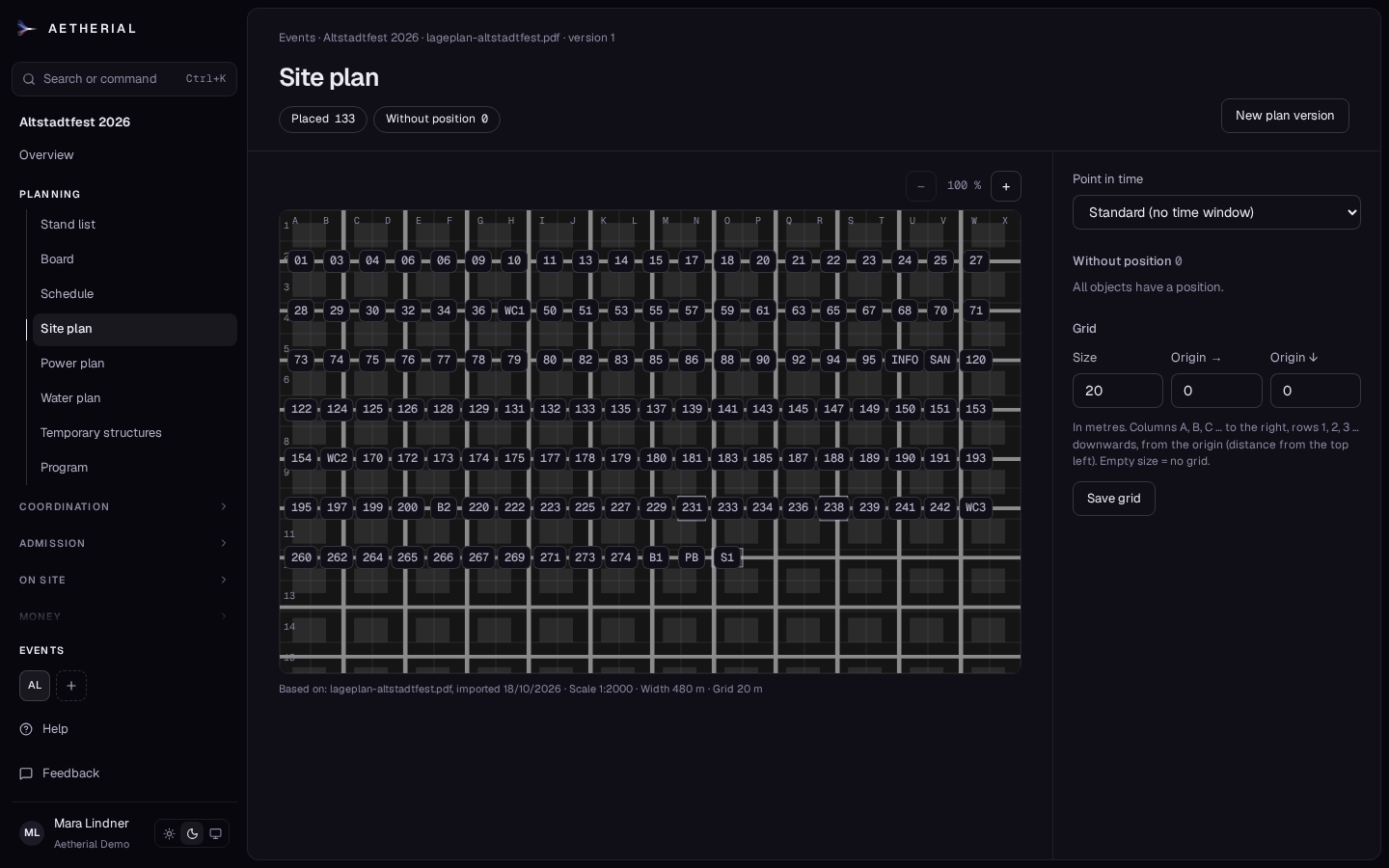
The site plan (Lageplan) shows the event site as a background image from CAD, with all objects at their position. By default a position applies to all time windows; for a changeover (Umbau) you can set a separate position per time window.
Who can do what
Section titled “Who can do what”The “Site plan” entry appears for everyone with read access to stands & planning (Standflächen & Planung). Each person only sees the objects they may read (sector leads, technical leads, contractors: own objects).
- Import site plan and change the grid: only with edit rights for the whole event (agency).
- Placing: whoever may edit the object, i.e. the agency all objects, sector lead and technical lead the objects of their sectors, and a contractor the objects its organisation operates or that lie in its sectors.
- In an archived event the plan is read-only.
Import the plan
Section titled “Import the plan”- Choose “Import site plan” (with an existing plan: “New plan version”).
- Choose the File (PDF or DXF). For a PDF, page 1 is used; a DXF must be ASCII DXF; DWG cannot be read. The file is rendered as an image in the browser; image, file name and checksum are stored.
- Enter the Scale: for a PDF as
1:500or500(the paper width is shown next to it), for a DXF the Drawing unit (metres, centimetres, millimetres). If the file states the unit, it is preselected. - Check the preview “The plan is … m wide.” Allowed are 1 to 100,000 m.
- Optionally set the grid (see below) and choose “Import”.
Elements a DXF cannot display are listed in the dialog under “Not displayed”. A new plan version takes over the grid of the previous one if you do not enter one. Existing positions are kept in metres.
Below the plan it says what the plan is based on: file, import date, scale or unit, width and grid.
The grid divides the plan into cells: columns A, B, C … to the right, rows 1, 2, 3 … downwards, e.g. “F8”.
| Field | Content |
|---|---|
| Size | Grid size in metres (0.5 to 1000); empty = no grid |
| Origin → | Distance of the grid start from the left edge in metres |
| Origin ↓ | Distance of the grid start from the top edge in metres |
“Save grid” recalculates the grid cell of every position. The standard position also sets the object’s “Grid” field. If that field is locked by an open change request, the object keeps its grid; a notice shows how many.
Place objects
Section titled “Place objects”Next to the plan is the “Placing” side column:
- Point in time: “Standard (no time window)” or a start of a time window in the event. The plan then shows, per object, the position of the narrowest time window containing that point in time, otherwise the standard position.
- “Without position”: objects that have no position at the chosen point in time. With a mouse drag the row, on a phone drag the grip on the right onto the plan.
- Selected object: click a marker or a row. The card shows the number (link to the object), grid, position in metres and what the position applies to (“Position: standard (all time windows)” or “Position for Changeover …”). Plus “Place in centre” and “Remove position”.
Saving always writes to the target shown: if a point in time is chosen and lies within a time window of the object, for that time window, otherwise the standard position. A position outside the plan is moved to the edge.
Markers on the plan can be moved: drag them, or use the arrow keys for 1 m, with Shift for 0.1 m. Esc clears the selection. A marker has the object’s width × depth, 3 × 3 m without dimensions. Above the plan you can zoom between 100 and 700 %, or with the mouse wheel or trackpad; the spot under the pointer stays in place. Drag an empty spot with the mouse to move the plan. This works on every plan (power, water, fences, security, branding).
Banner positions (with access to branding) appear as a chip with their code. They are view-only here; a click shows code, carrier and location with a link “Open in banner plan”, where you place them.
The chips in the page header count “Placed” and “Without position” at the chosen point in time. Every import, grid change and placement is recorded in the log.
Cancelled objects are not on the plan and not under “Without position”. Their position stays stored and applies again once the stand is reactivated.