

Stand list
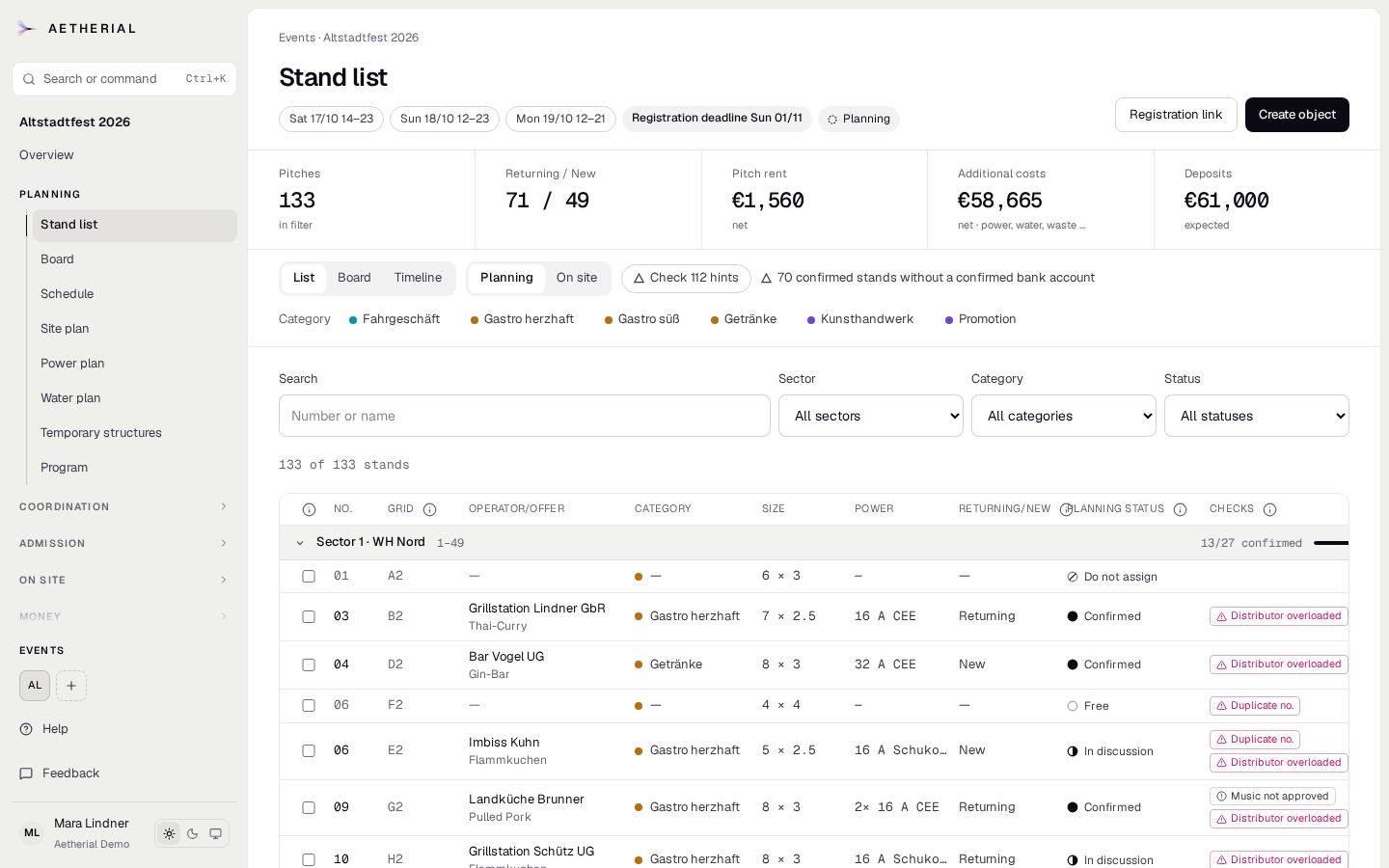
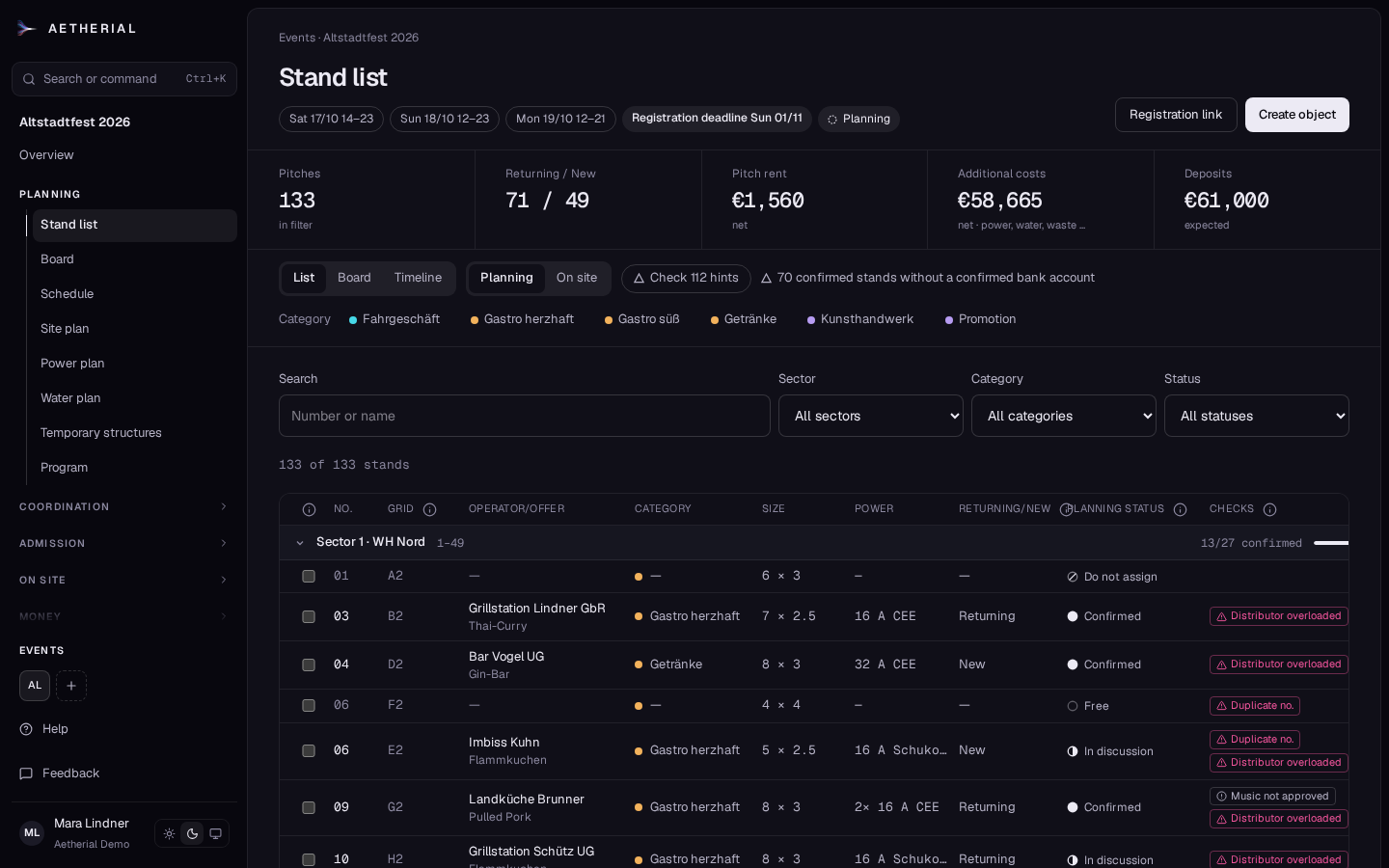
The stand list shows the objects of an event, grouped by sector, with status, costs and rule hints. It replaces the Excel overview. Stages and infrastructure (kind “Stage” and “Infrastructure”) are not listed here but in their own list Infrastructure; rides, tents and all other kinds stay in the stand list.
Who sees it
Section titled “Who sees it”The “Stand list” entry appears for everyone with read access to stands & planning (Standflächen & Planung). Each person only sees the rows they may read: agency and customer all rows, sector leads, contractors (Gewerke) and stand operators only their own objects.
- Amounts (“Net amount” column and the money figures) only with the finance right.
- Selecting rows and “Request link” only for the agency (right to review stand requests).
- Selecting rows and “Request info” with “edit” on stands & planning; event not archived.
- “Export for authorities” only with read access to stands & planning and to stand operator contact data.
Key figures
Section titled “Key figures”Key figures sit above the list. They are always calculated from exactly the rows shown, i.e. under the active filters. The money figures show the total of the confirmed stands, below it “+ X € open” for the stands in Inquiry and In discussion. Cancelled stands, “Free” and “Do not assign” do not count.
| Figure | Content |
|---|---|
| Pitches | Number of rows in the filter, without cancelled ones |
| Returning / New | Number of returning (Bestand) and new stands |
| Pitch rent | Net total of the stand areas (finance right only) |
| Additional costs | Net total for power, water, waste, standing/seating area … without rebilled security (finance right only) |
| Deposits | Expected total (finance right only) |
Distribution
Section titled “Distribution”Next to the key figures, the “Distribution” panel shows a pie chart of the stands per product group or per category. The legend lists count and share in whole percent for each slice. This shows whether the same kind of offer clusters in a small space.
-
“Product group | Category”: the toggle chooses what the chart splits by; when the stand list opens, it is set to “Product group”. Switching returns to the top level.
-
Product group: slices Food, Drinks, Goods, Entertainment and “not specified”, in shades of grey.
-
Category: one slice per category with stands in the basis, by count descending, “no category” last. Each slice has the colour of the category as in the category chips: the category’s own colour, else the common area colour of its stands. Categories without a colour and “no category” appear in shades of grey. The meaning is always in the legend with name and numbers.
-
Basis: if stands are selected, exactly the selected ones count, even if a filter hides them (“Selection: N stands”). Otherwise the rows shown under all filters count, including the sector (“Filter: N stands”). This way you can check self-chosen zones across sector borders. The chart updates instantly.
-
Counted are stands, not areas. Cancelled stands, “Do not assign”, “Free” and refrigerated truck rows never count; so “Selection: N stands” can be lower than the number of selected rows. Objects without a product group (for example a stage) are listed under “not specified”.
-
Offers: a click on a slice or a legend entry shows the stands of this product group or category by offer (Überbegriff). The same offer in another spelling (spaces, upper/lower case) counts together. With more than eight offers, the seven largest are shown on their own and the rest under “Other”. The offers of a category appear in shades of its colour. “Back to product groups” or “Back to categories” returns; a new selection or filter keeps the toggle and the level.
-
Without stands in the basis, a short note replaces the chart.
Toolbar and filters
Section titled “Toolbar and filters”- “List | Board | Timeline”: switches to the board or the timeline of the same event. “Timeline” only appears with read access to the schedule.
- Status view: “Planning” shows the planning status, “On site” the on-site status. The view is part of the address (
?view=onsite) and can be shared that way. - “Check N hints”: filters to rows with a rule hint; a second click removes the filter. Only appears when there are hints.
- “N without number”: counts the stands that have no stand number yet and filters to them; a second click removes the filter. Combines with all other filters and is part of the address (
?number=none). Only appears when there are such stands. In the list they show the “no number” symbol instead of the number. - “N refrigerated trucks open”: counts the requested, not yet confirmed refrigerated trucks and filters to stands with one of them; a second click removes the filter. Combines with all other filters and is part of the address (
?cooling=open). Only appears when there are open trucks. - “N confirmed stands without a confirmed bank account” (only for whoever issues operator links): confirmed stands whose stand operator has not yet entered or confirmed a bank account for this event via the own stand. The count only, never bank data.
- Category chips: one chip with area colour per category in use. A click filters to that category, a second click removes the filter. Chip and the “Category” select are the same filter.
- “Operator: name”: the filter symbol next to the operator name in a row shows all stands of this stand operator in the event; the key figures then cover exactly these stands. The filter is part of the address (
?exhibitor=…); the × in the chip removes it; the name in the chip opens the operator page. A click on the name itself opens the object detail of that stand. Only whoever may read stand operator contact details sees the name. - Search: number or name (stand operator, subtenant or offer).
- Sector, Category, Status: selects; “Status” offers the values of the chosen status view.
Below the filters it reads “N of M stands”. Filtering happens instantly in the browser.
Groups
Section titled “Groups”Rows are grouped by sector, sorted by sector number, and within a sector by stand number (2 before 10; stands without a number last). The group header shows “Sector N · Name”, the number range, “x/y confirmed” and a progress bar. A click on the header collapses or expands the group; the browser remembers this per event. With more than 40 rows only the first sector starts open, a filter opens all. Objects without a sector are listed last under “No sector”.
Cancelled
Section titled “Cancelled”Cancelled stands sit in their own group “Cancelled” after “No sector”. The group appears only when it has rows and shows no progress. The stand keeps its sector; its number is cleared on cancelling and is free for other stands (the old number stays in the log); filters apply here too, the sector filter shows the cancelled stands of that sector. A refrigerated truck stays as a row below the stand.
A cancelled stand does not count in “x/y confirmed”, in the key figures “Pitches” and “Returning / New”, or in the chips “Check N hints”, “N without number” and “N refrigerated trucks open”; while one of these chips is active it is hidden. A category with only cancelled stands gets no category chip. “N of M” still counts it. It raises no rule hints. It stays findable through the status filter, the board, the object detail and search; deposits, contract penalties and the log are unchanged.
If you set the stand back to “Inquiry”, it returns to its sector and counts again, but without a number: it shows under “without number” until you give it one in the master data. Other object kinds (except stage and venue, which keep their number) need a number right away when set back. This applies only to “Cancelled”, not to “Free” or “Do not assign”.
If a stand has a refrigerated truck, an indented row “Refrigerated vehicle number” follows it: the number is the stand number (without one, the “no number” symbol), plus count, length × width × height, permitted total weight and the status as a shape: requested dashed, confirmed full. Confirming happens in the object detail (see Sectors and objects).
Anyone who may read the milestones sees the group “Milestones” above the list: every readable milestone with status symbol, title, planned time (or “Time open”) and status, sorted by time. Clicking its header collapses or expands it, clicking a row opens the milestone. Filters and key figures do not apply to this group.
Columns
Section titled “Columns”| Column | Content |
|---|---|
| No. | Stand number, links to the object detail |
| Grid | Grid (Raster) |
| Operator/offer | Stand operator (only with the contact data right) with the offer below, otherwise just the offer; if the stand has a subtenant, “Subtenant: name” below |
| Category | Category with area colour |
| Size | Width × depth in metres |
| Power | Booked connections, e.g. “2× 16 A CEE” (highest count across the time windows) |
| Returning/new | “Returning” or “New” |
| Planning status or On site | Symbol and text (see Status symbols) |
| Checks | Rule hint chips |
| Net amount | Net costs (finance right only) |
Rows with status “Free” or “Do not assign” are shown dimmed. A missing value shows as “—”.
Export for authorities
Section titled “Export for authorities”“Export for authorities” at the top right downloads a CSV file (opens in Excel) with one row per stand of the event, without cancelled stands, “Do not assign” and “Free”, sorted by stand number (without number last, as “no no.”). Columns: stand number, grid, category, stand operator, the stand operator’s address, contact person and phone, subtenant, the subtenant’s address, contact person and phone (empty without a subtenant). The column headers are in your language. The file never contains bank details, prices, e-mail addresses or notes. Every export is in the log (who, when, how many rows). Only people who may read stands & planning and stand operator contact data see the button; the export only holds the stands for which both apply.
Operator page
Section titled “Operator page”The operator page shows one stand operator within the event; the event sidebar stays. You reach it via the name in the chip “Operator: name”, via the stand operator under Participants in the object detail and via “Correct name” in a stand’s master data.
- Contact details: address, contact person, phone, email and email for invoices, read only. They come from import and stand application.
- Stands at this event: per stand the planning status, number, category and offer; a click opens the object detail. “Filter the stand list” opens the stand list with the filter “Operator: name”.
- Stand applications (only who reviews stand applications): status, assigned number and date received; a click opens the stand application.
- Correct name (agency only): the stand operator applies to all events of the tenant, so the new name shows everywhere. Recorded in the log.
- “Open in Organizations” (only with the right to access & organizations): people with access for this stand operator.
The page is visible to whoever may read stand operator contact details for at least one stand of this operator, and then shows only those stands (e.g. a sector lead sees the stands of their sector). Whoever reviews stand applications also sees the page without such a stand if the operator has stand applications at this event. Otherwise the page does not exist for you.
Using the list
Section titled “Using the list”- Open: click the number, double-click the row, or press ↵ on the selected row.
- Keyboard: J/K or the arrow keys move between rows, X selects. All shortcuts: Keyboard shortcuts.
Request link for several stands
Section titled “Request link for several stands”- Select rows with the checkbox or X. “N selected” with “Clear selection” appears at the bottom.
- Choose “Request link (N)” in the page header.
- The Stand requests page opens with the selected objects preselected.
Request info for several objects
Section titled “Request info for several objects”- Select rows as above.
- Choose “Request info” in the bar at the bottom.
- The Info requests page opens with the dialog for the selected objects.