

Changes
When a stand operator wants to change something about their stand – a different size, a different setup window, more power – it is recorded as a change request (Änderungsantrag). The request locks only the affected fields until the responsible area decides. All open requests of an event come together in the changes inbox.
Who can do what
Section titled “Who can do what”| Task | Who |
|---|---|
| Open the inbox | Everyone with read access to stands & planning, plus every participant of the event except authorities for their own counter-proposals. Visible are requests for objects you may read, and requests you may decide. |
| Record a change | Anyone who may edit the object |
| Decide | Anyone who may edit stands & planning for the object within the chosen area (“Approval by”). With “Agency”, only the agency without sector or area restriction. |
Record a change
Section titled “Record a change”In the object detail (see Sectors and objects):
- Choose “Edit” and go to the “Record change” section.
- Under “Field” pick the field, under “New value” enter the requested value.
- Optionally add a “Reason”.
- Under “Approval by” pick the responsible area or “Agency”. The object’s area is preselected.
- “Request change”.
These can be requested:
| Part | Fields |
|---|---|
| Object | Offer, Product category, Width, Depth, Height, Construction type, Grid, Sector, Category, Attributes |
| Time window | Start, End |
| Requirement | Quantity, Details |
| Power connection | Connection type, Device load (kW) |
Number, area, stand operator, planning status and prices cannot be requested; the agency changes them directly. Only one request per field can be open, and the new value must differ from the current one. Power connections can only be requested by those who may edit the power plan (agency, power contractor).
Stand operators also file change requests themselves via the link to their own stand (“Request change”). Approval then lies with the stand’s area, or with the agency if it has none. These requests appear in the changes inbox just the same.
What an open request does
Section titled “What an open request does”- The object shows “Change pending” in its header (symbol: Status symbols).
- Affected fields carry “· locked” and cannot be changed directly. All other fields remain editable.
- Affected requirements are set to “change requested”.
- At the top of the object detail a “Change request” card shows before → after, reason, requester and “awaiting approval by …”. Anyone who may decide finds “Approve”, “Query” and “Reject” there.
Decisions
Section titled “Decisions”| Decision | Effect |
|---|---|
| Approve | The new values are applied, the lock is lifted. |
| Reject | The old values stay, the lock is lifted. |
| Query (Rückfrage) | The request stays open and locked and moves to the “Queried” group. After that, only approve or reject is possible. |
| Snooze | Personal: hides the entry from “Needs me” until the next morning at 06:00. Nothing changes on the request. |
After approval or rejection, requirements get their previous status back. Every decision is recorded in the log.
Changes inbox
Section titled “Changes inbox”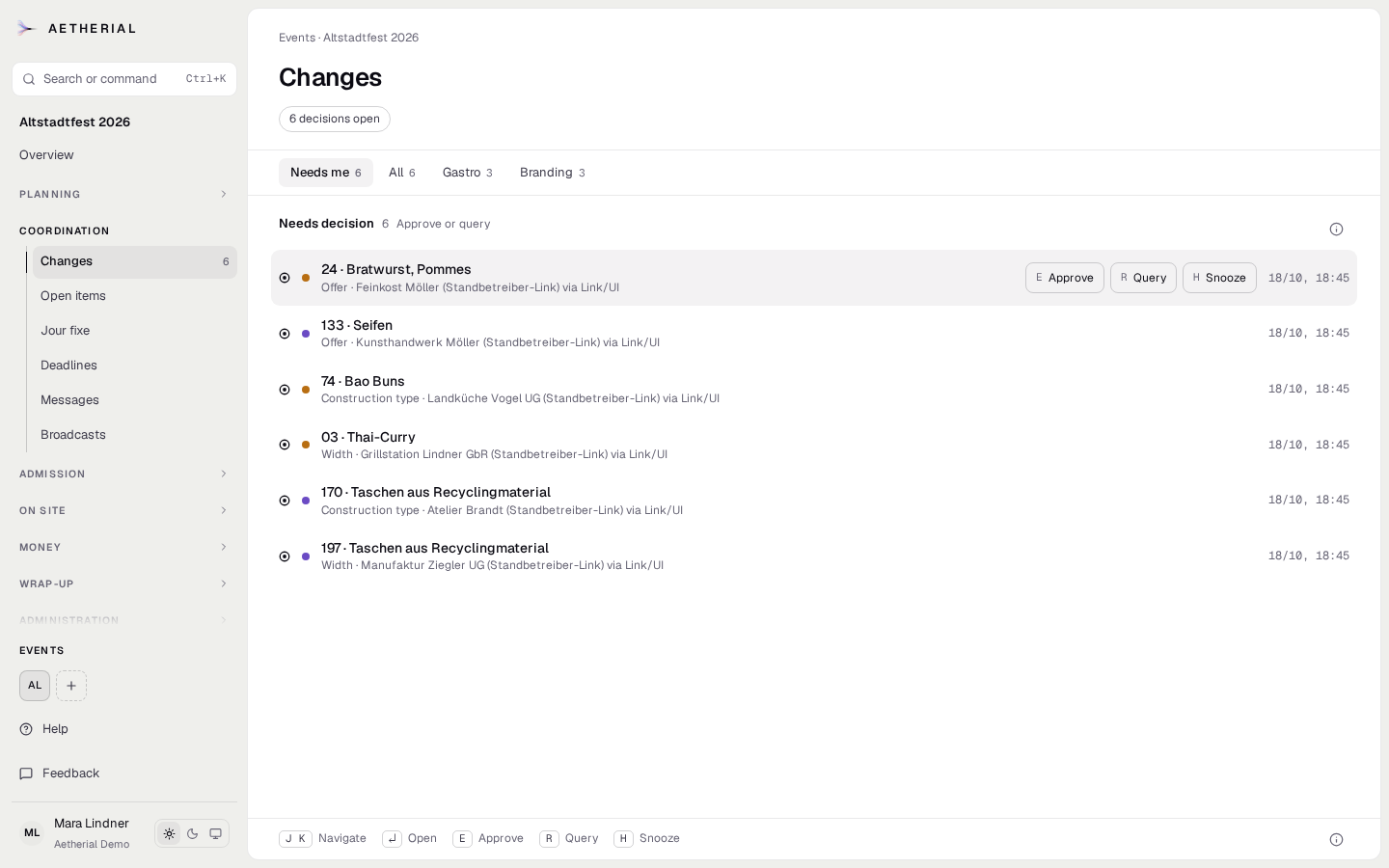
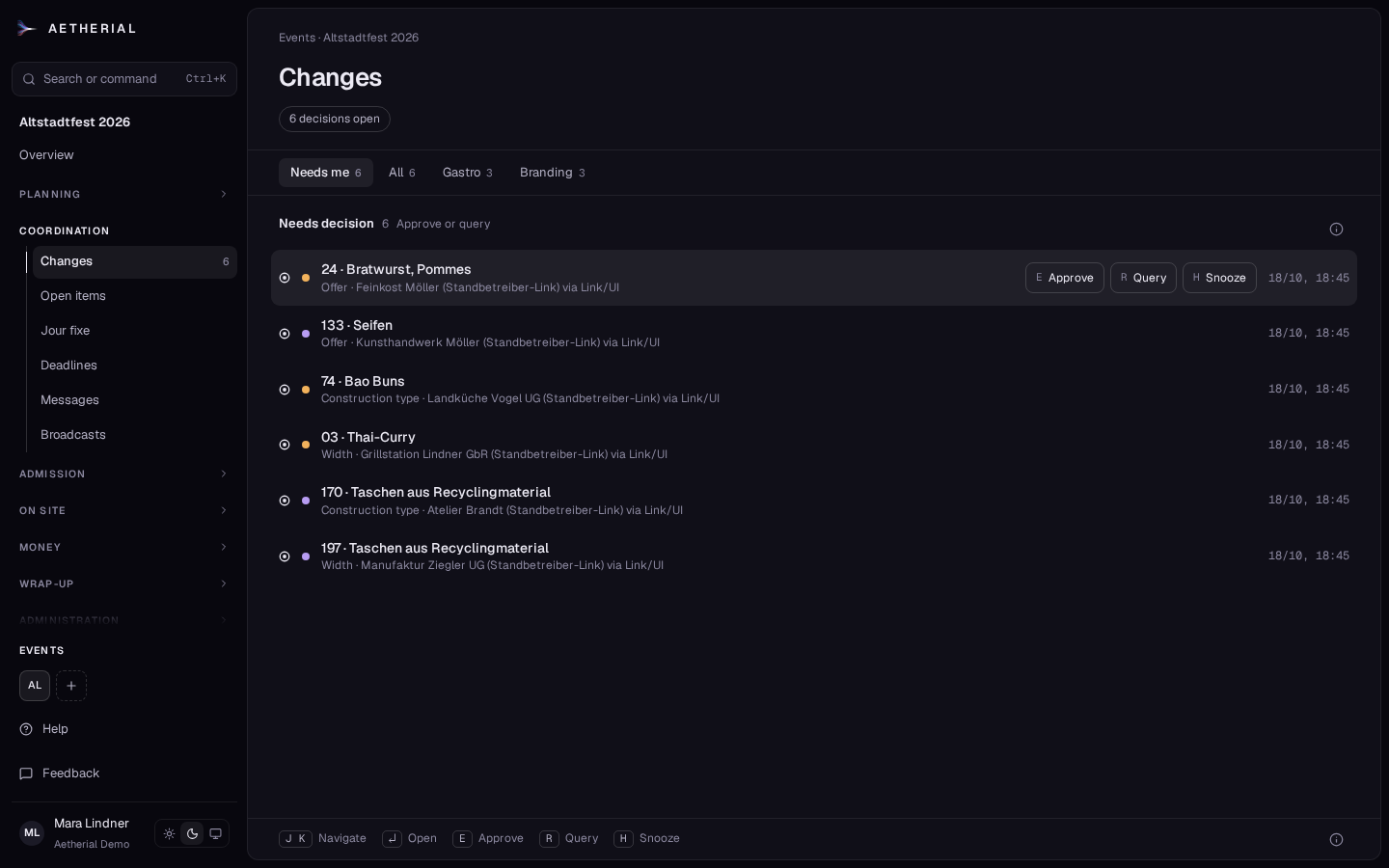
The “Changes” entry in the sidebar (group “Coordination”) shows the number of entries under “Needs me”.
Tabs:
- Needs me: open requests you may decide that are not snoozed.
- All: all visible entries.
- one per area: entries whose approval lies with that area.
Groups: “Needs decision” (open), “Queried” and “Approved” (the most recently decided). Rejected requests no longer appear in the list.
Each row shows status, area colour, object (“No. · offer”), for each changed field the old value struck through and the new one next to it (e.g. “Strom · Betrieb 230 V · 16 A → 400 V · 32 A”), below that the requester with source (e.g. “[NAME] via Link/UI”) and, while undecided, the area whose approval it is waiting on (“waiting on Technik”), plus the time. Bank details never appear. Anyone who may decide has an “Approve” button in the row, and for open requests also “Query” and “Snooze”. Rejecting is only possible in the detail view or the object detail.
Detail view
Section titled “Detail view”A click on an entry opens the detail view with:
- status, type (Change request), source and area as chips; “Go to object” leads to the object detail,
- a Field / Before / After table,
- Reason and, if any, Last reply,
- a “Reply to [NAME]” field (at most 2000 characters),
- the buttons “Snooze”, “Query”, “Reject” and “Approve and reply”,
- the entry’s History.
After a decision the next entry opens directly. The shortcuts (J, K, E, R, H, Esc, ⌘ ↵) are listed under Keyboard shortcuts.
Requests on a cancelled stand stay in the inbox and show “Cancelled”; deciding them is up to you.
Counter-proposals
Section titled “Counter-proposals”Objects, open items, milestones, tasks, production/packing list items, emergency measures, deadlines, meetings and more plans have an owner: the person responsible if they take part in the event, otherwise the person who created the entry. Emergency measures have no responsible person, so there it is the person who recorded them; for defects the person who reported them. For deadlines and more plans it is the person who created them. For meetings it is the person who created the series. Organisations and teams are never owners. Only the owner changes their entry directly. Everyone else with edit rights – on every level, including level 1 – sends a counter-proposal when saving (for objects, milestones, tasks, production/packing list items, deadlines and more plans also when deleting); the entry stays unchanged until it is decided. The form then says who the counter-proposal goes to.
- Counter-proposals appear in the changes inbox with the source “Counter-proposal”. Only the proposing person and the owner see them; only the owner decides.
- Approve applies the change with the proposing person’s rights. If they no longer have the right, approving fails visibly and the counter-proposal stays open.
- Reject needs a reason and is final. The proposing person sees the reason under “All” in the group “Rejected”. There is no follow-up question.
- Entries without an owner (existing data, import) are still changed directly by anyone with edit rights. If the owner left the event, the person who invited them decides, otherwise level 1.
- Status actions stay direct: on milestones those of trade contractors (enter the time, report “reached”), on tasks ticking off and delegating, on the production and packing list the status and “packed”, on objects the planning status, site plan, photos, on-site status and confirming a cooling vehicle, on emergency measures recording and “Done”, on defects reporting, seen, fixed and the escalation, on meetings starting, outcomes, closing, the agenda, carrying over and correcting minutes; for deadlines banner delivery deadlines in the banner plan, reminders and sending messages; on more plans adding and reordering; also the decision on a change request.
- If someone proposes a new file for one of the more plans, open it via “View proposed file” while the counter-proposal is open. Rejecting deletes the proposed file.
- In a counter-proposal you see values from contact data, finance and teams only with read rights on that area; otherwise it says “changed”.
- If you approve an AI proposal for a stand you do not own, it goes on to the owner as a counter-proposal; the stand only changes once they approve.