What is Aetherial?
Aetherial is a web app for event agencies that plan city festivals and similar events with many stands. It keeps one record per stand – from the exhibitor’s stand request through power, costs and coordination to on-site inspection and deposit settlement.
That way Aetherial replaces the spreadsheet used for planning and the Trello cards and WhatsApp groups used on site. Data is no longer retyped between stand request, spreadsheet and board; validation rules no longer live in column headers but run automatically.
Who it is for
Section titled “Who it is for”| Who | What for |
|---|---|
| Agency | Plans events, stands, stand requests, costs and coordination, runs operations on site and settles accounts. |
| Customer (organiser) | Reads the stand list, status and finances, follows open items, decides on deposit deductions. |
| Sector lead, technical lead, contractors (Gewerke) | See the stands they are responsible for and work on site in the mobile app. |
| Crews | Work with a login or without an account via QR access. |
| Exhibitors | Submit a stand request via a link, without an account, and see their stand in the stand portal. |
What each role may do is described under Roles.
What Aetherial does
Section titled “What Aetherial does”Preparation
- create events (also as a copy of the previous year) and move their status from planning to archive
- stand list by sector with filters, key figures and rule hints; sectors and objects with time windows and requirements
- stand requests via the request form with power check and cost overview; approve or query changes
- Excel import and Trello import
Planning
- board, schedule, milestones, tasks and site plan
- power plan, water plan, fence plan, temporary structures and stage programme
- teams, duty planning and security posts
- deadlines and messages by email and SMS, open items and Jour fixe meetings
- walking permits and vehicle permits
On site
- mobile app for sector leads, technical lead and contractors, also offline
- inspection round, inspection protocol and defects with photo
- QR access, security check-in, gate control and walking permit checks
- broadcasts, weather, emergency measures and the TV display
- handout and return of material from material issue
Wrap-up
- inspection after teardown, deposit settlement with SEPA transfer file
- financial overview with costs and revenue
- learnings with retro, survey and lessons for the next event
Plus: the log of every business change and administration of access, catalog and tenant.
This documentation only describes what is available in the app.
Principles
Section titled “Principles”- Status as shape, not colour. See status symbols.
- Everything is logged. Every business change appears in the log with person, time and channel; entries cannot be changed or deleted.
- Deleting always asks first. “Really delete?” with “Cancel” or “Delete”; nothing is deleted before you confirm, and it cannot be undone.
- Dialogs have “Cancel”. If you changed something in a dialog, closing it (Cancel, ×, Esc, click outside) asks “Discard changes?”; without changes it closes right away.
- Permissions apply everywhere. What a role may not see appears neither in lists nor in search. Bank data is a separate area with its own permission.
- Money net, in cents. Amounts are calculated net; VAT and deposit are shown separately.
- Two languages, two themes. Interface in German and English; dark and light theme are equal.
The interface
Section titled “The interface”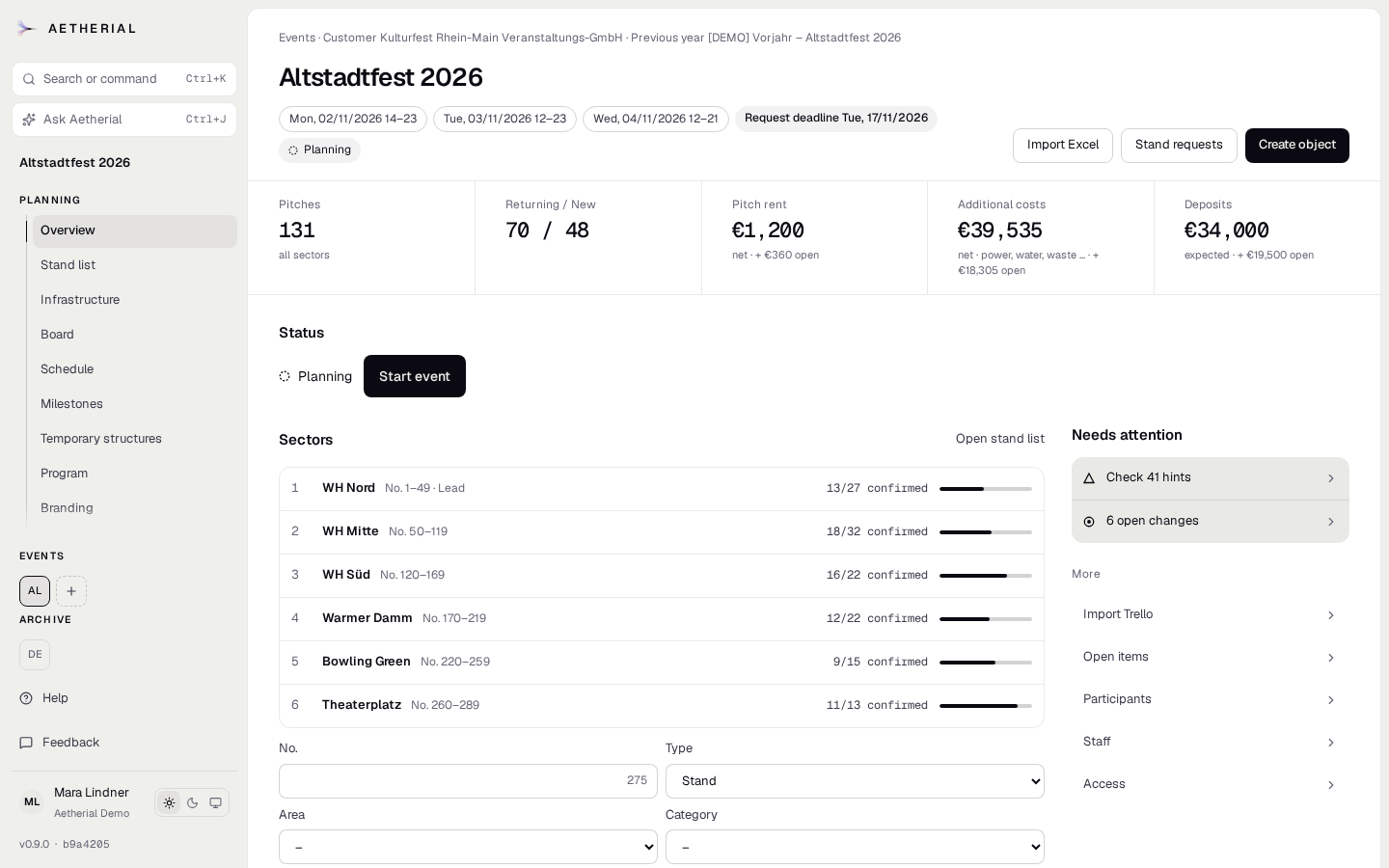
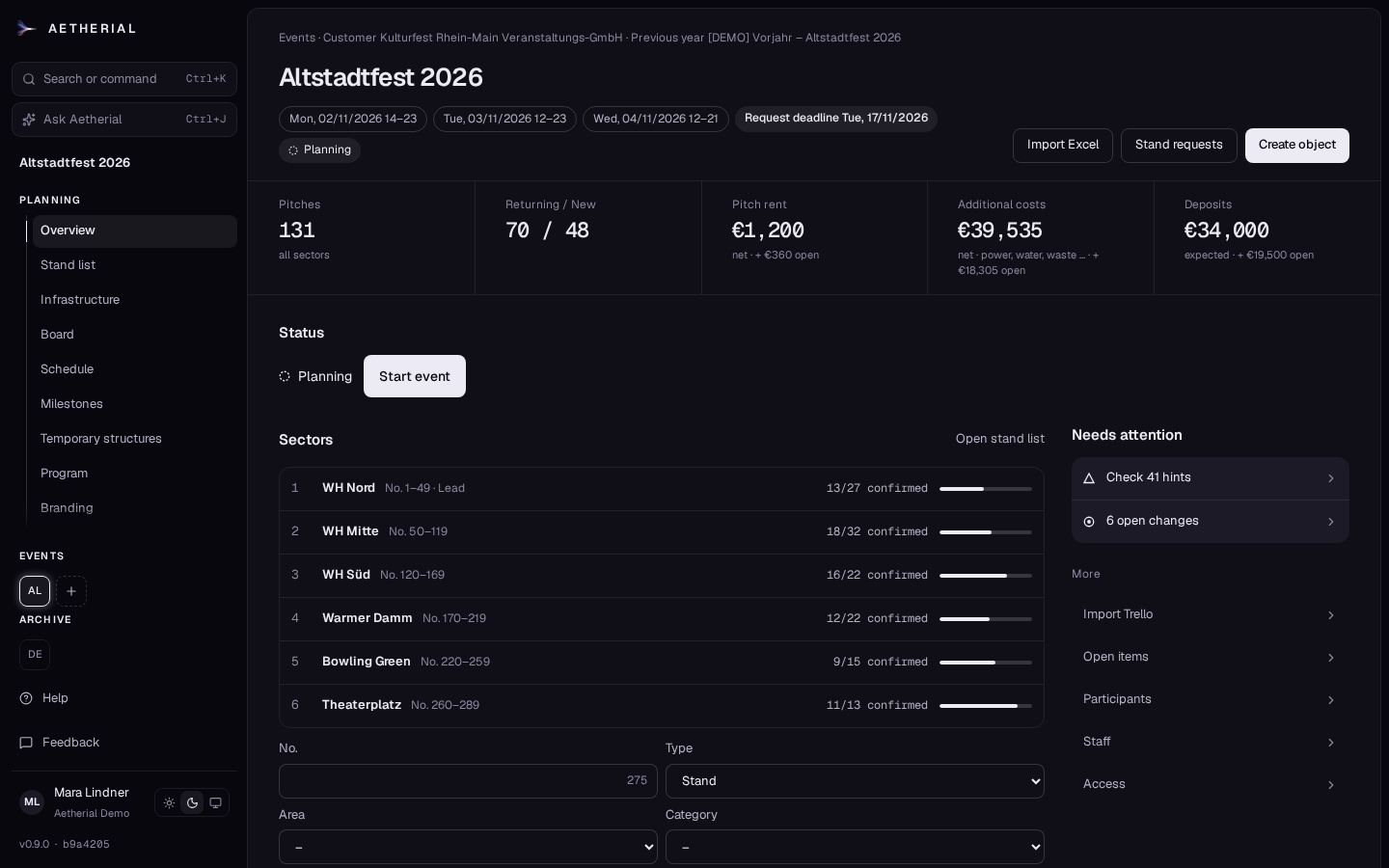
- Sidebar (on mobile behind “Open menu”): “Search or command” and, if set up, “Ask Aetherial” at the top, then the pages of the current event in groups (Planning, Plans with site plan, power plan, water plan and fence plan, Coordination, Admission, Team, On site, Money, Wrap-up, Administration), then the pages of the tenant and “Pinned”; at the bottom the event switcher, Help (this documentation), Feedback and your name with text size and light, dark, system. The group of the current page is open; a click on a heading opens further groups, and the browser remembers them. A counter next to “Changes” shows how many entries are waiting under “Needs me”.
- Pinned: objects you mark with “Pin” in the object detail view appear in the sidebar for quick access.
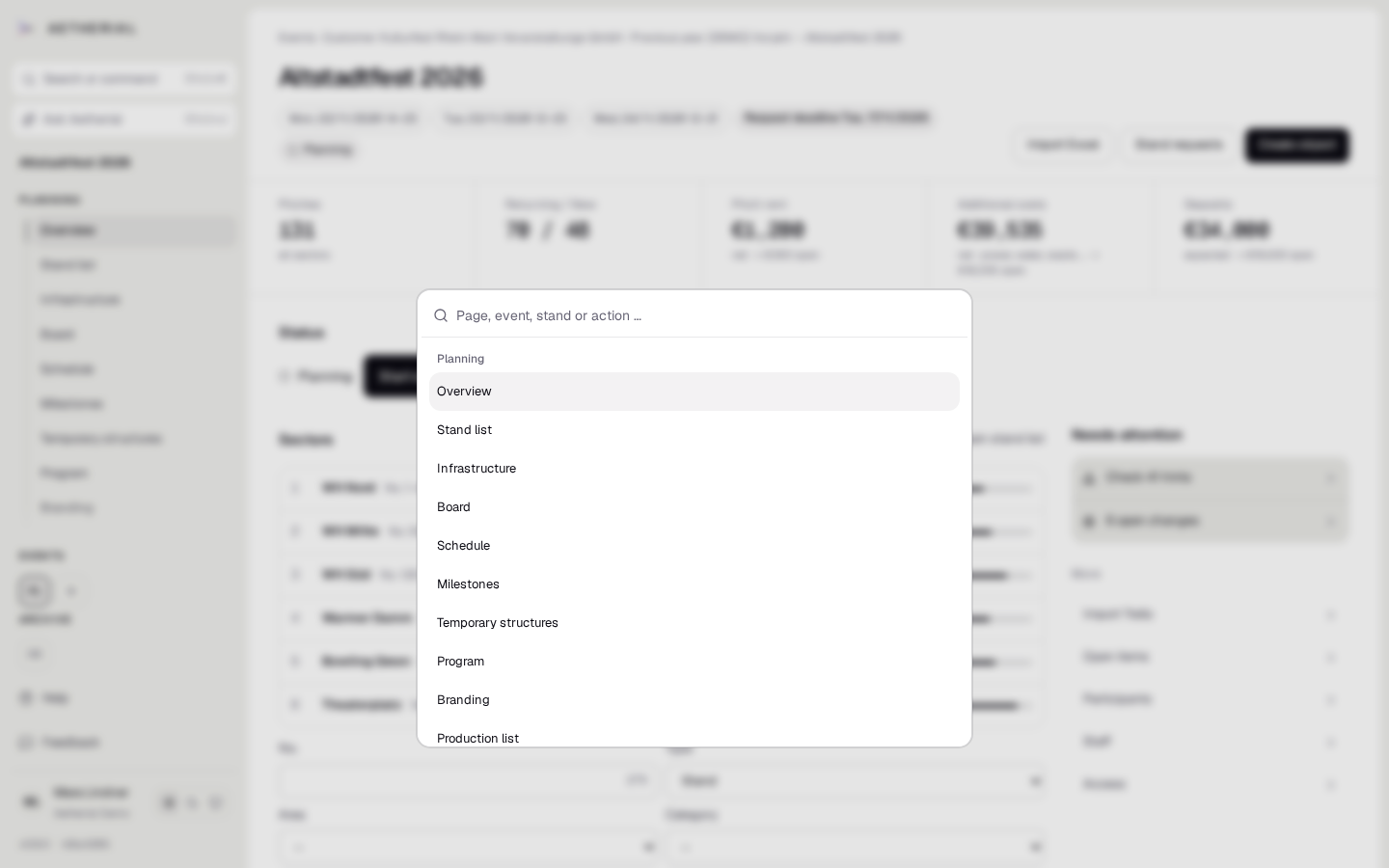
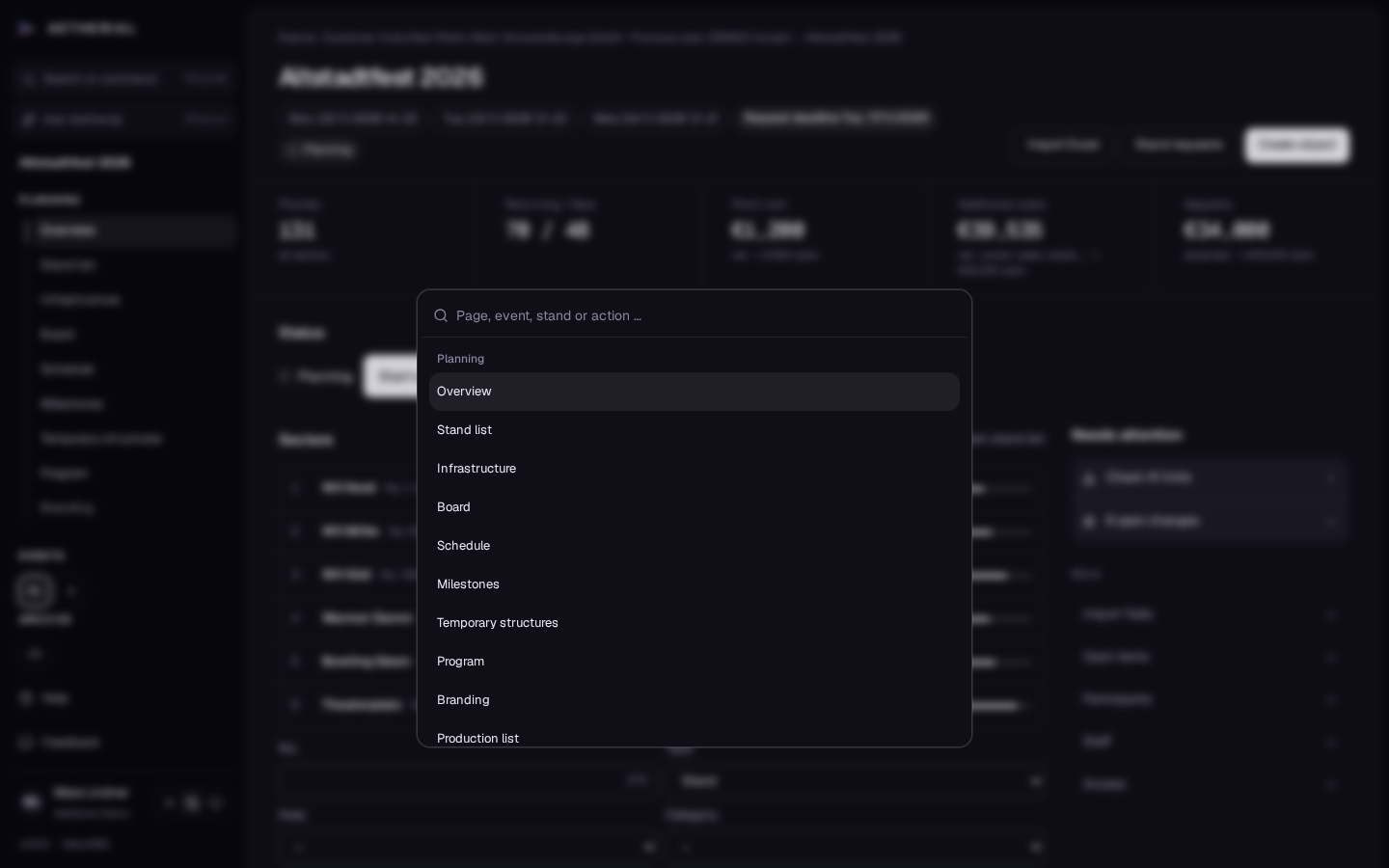
- Search or command (⌘ K / Ctrl K): jumps to pages, events, objects and actions. See keyboard shortcuts.
- Appearance: Light, Dark or System; plus the text size Normal, Large or Extra large (see Sign in).
- Account: your name at the bottom of the sidebar leads to the account page with language, appearance, text size, passkeys and push notifications (see Sign in).